Death Stranding 2: On the Beach for Windows features full mouse and keyboard support, but those who want to play the Norman Reedus walking simulator with a controller may find the default controls a bit unusual. Here are a few remap suggestions that you can apply via the “Controller Remapping” feature, which can be found by hitting “Options” in the pause menu, followed by shifting to the “Controller Options” tab.
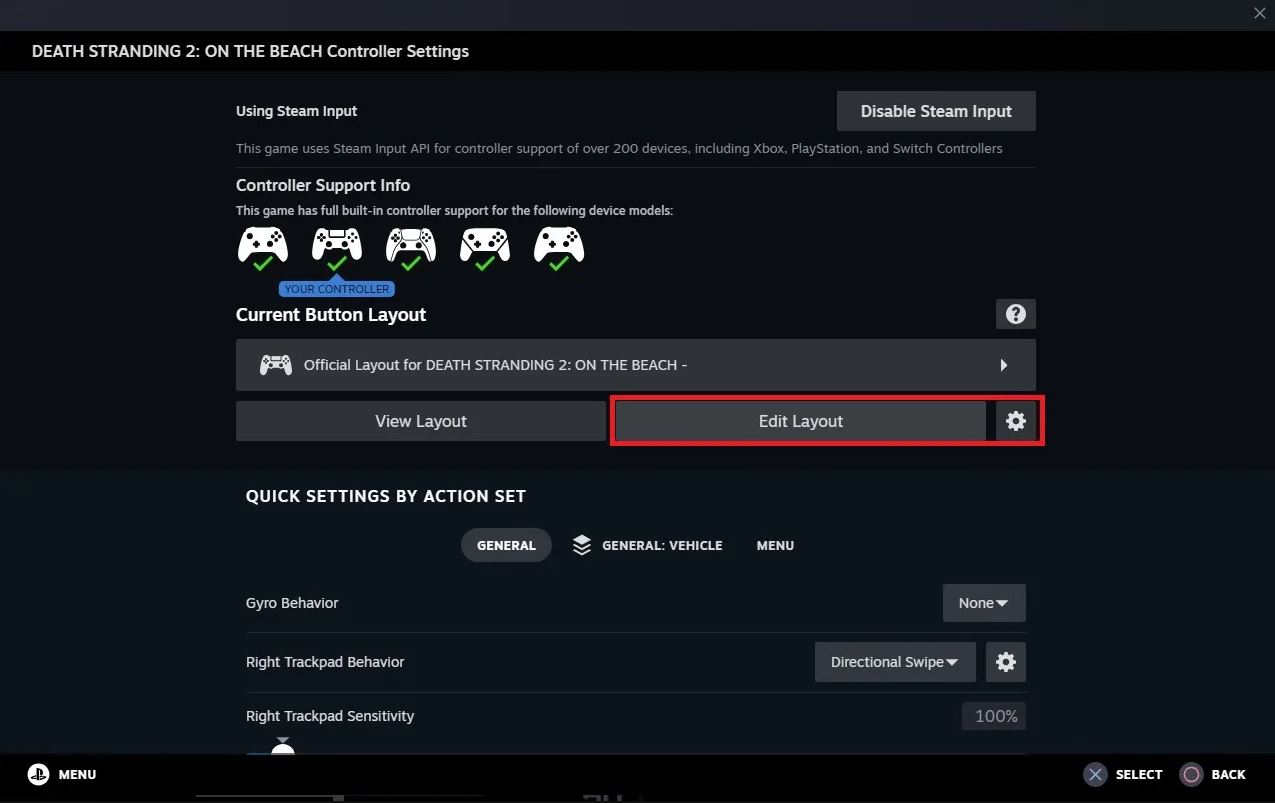
You’ll be redirected to your Steam overlay, where you can manually change your controller settings by selecting the “Edit Layout” option. Since Death Stranding 2: On the Beach was initially a PlayStation 5 exclusive, I’ll be using the DualShock/DualSense button annotations throughout this guide.
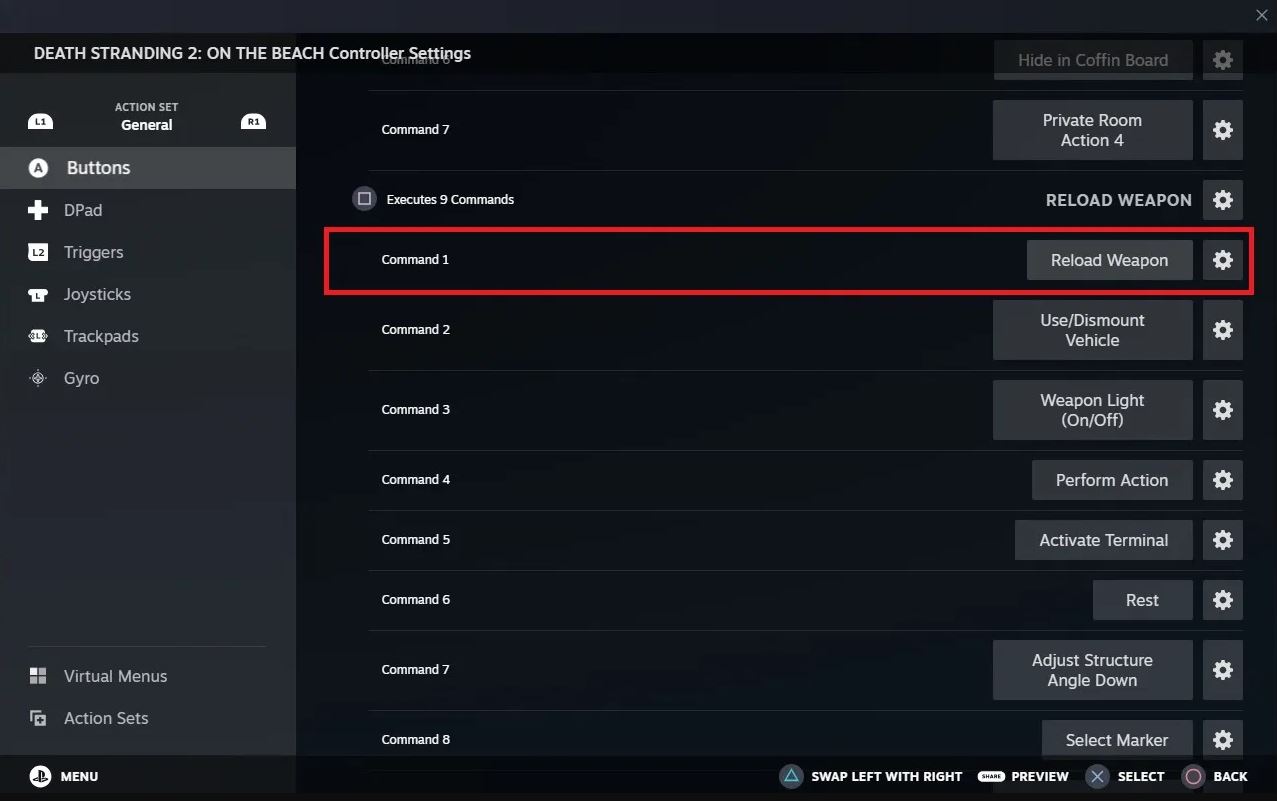
Remap the face buttons for “Reload Weapon” and “Crouch/Stand”
Those who play third-person and first-person shooters with a controller may have issues with Death Stranding 2’s default reload button (“Reload Weapon” is mapped to the Circle button instead of the usual Square button).
You can assign a new command under the Square button marked “Reload Weapon.” While Square is the default “Interact” button and is mapped to several functions, adding “Reload Weapon” into the mix does not cause interference, as it only applies when you’re aiming a weapon that uses ammunition.
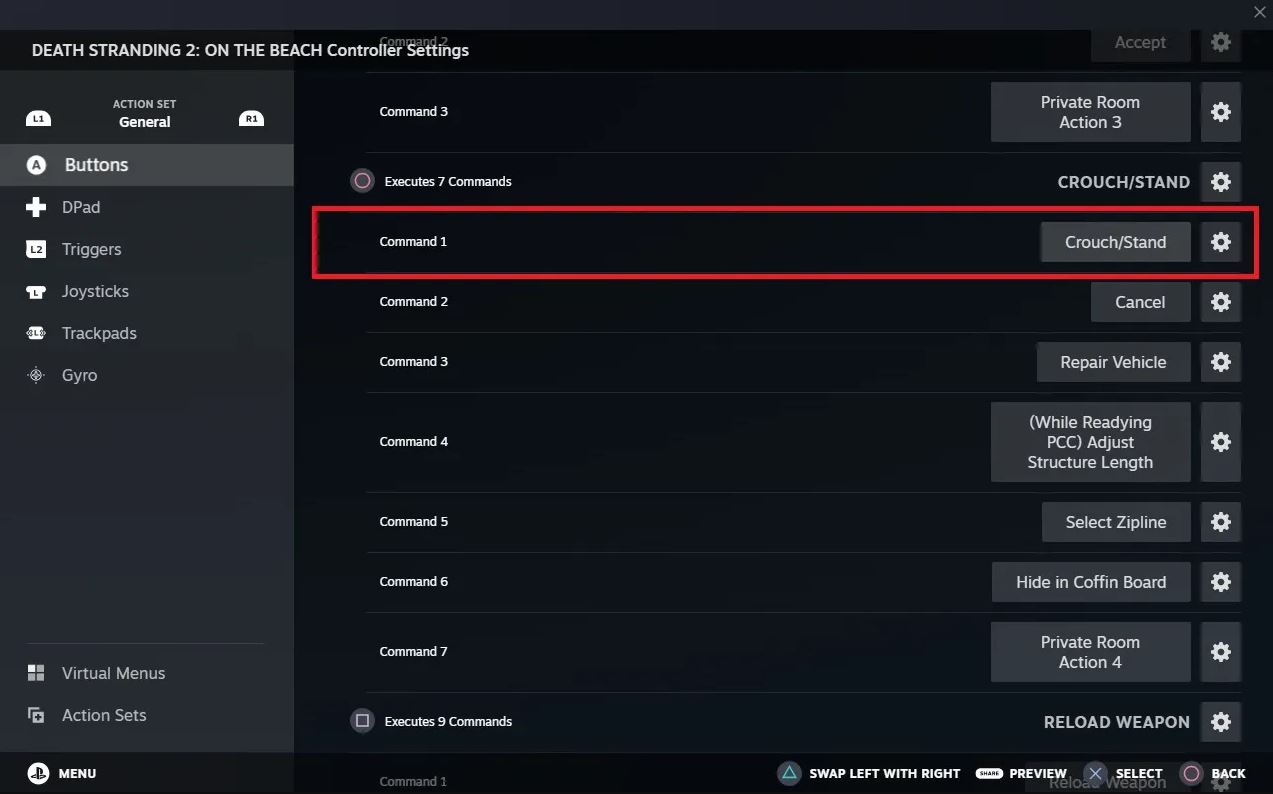
“Crouch/Stand, on the other hand, is mapped to the R1 button by default. This may cause some confusion, not just for players of third-person games (where crouch is usually mapped to the Circle button), but for those who played the original Death Stranding (where you would scan the surrounding terrain with your Odradek using R1 by default).
Instead of deleting your previous command for “Reload Weapon” (which is mapped to the Circle button), swap the function to “Crouch/Stand” instead. This makes crouching feel more natural to controller players and frees up your shoulder buttons for more important inputs.
Since “Melee Attack” is also mapped to Circle, you’ll want to delete that command and move it to a shoulder button as well.
Put your most important buttons on the bumpers
Though the “Scan” command is fine just where it is, switching it over to the other shoulder button might be preferable to those familiar with the first Death Stranding. Should you decide to do this, however, you might want to switch your Action Set (the menu on the left-hand side of the Controller Settings) to “General-Vehicle” and make sure the “Scan” function is still set to L1. While this swaps the “Scan” input when you’re in a vehicle, it frees up your R1 button so you can still shoot while driving.
Going back to the “General” on-foot settings, map “Melee Attack” (which was previously removed from the Circle button) over to L1 and change the behavior of “Compass Mode” to a long press (the latter can be done by clicking the gear icon beside the command and choosing the appropriate setting). This will prevent you from accidentally zooming in on an enemy’s face when you’re trying to punch them instead.
These are just a few personal suggestions, however. Death Stranding 2: On the Beach’s PC port has a wealth of options that allow you to play however you want, and everyone has a different controller scheme that they prefer.
Death Stranding 2: On the Beach is available for PlayStation 5 and Windows (Steam).